
WooRewards gives you a lot of control over the content you can display on the cart and checkout pages. The principle is that we let you set the content you want at different locations in the cart and checkout pages.
To display dynamic content, you’ll have to use shortcodes. For more information about available shortcodes, check this part of the documentation. You will also find a list of all available shortcodes and an inline documentation by going to this page :
Cart Page Content
To add content to your cart page, go to the following settings page :
Once you’re there, you will see 2 different text fields where you can set your content, named Between Products and Totals and Aside from Totals. Here’s a graphic representation of these areas in the cart page :
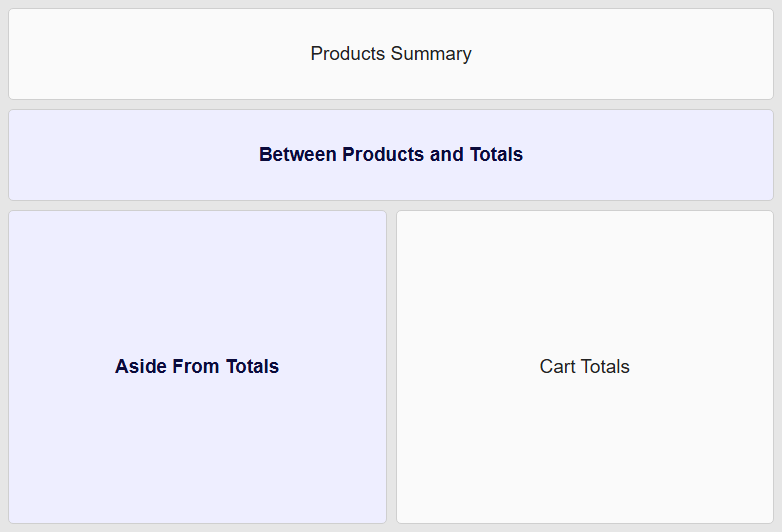
In each area, you can set the content you want. You will find some advise on the content to set down below.
Checkout Page Content
To add content to your checkout page, go to the following settings page :
Once you’re there, you will see 4 different text fields where you can set your content, named Top of the page, Before Customer Details, Before Order Review and Inside Order Review. Here’s a graphic representation of these areas in the checkout page :
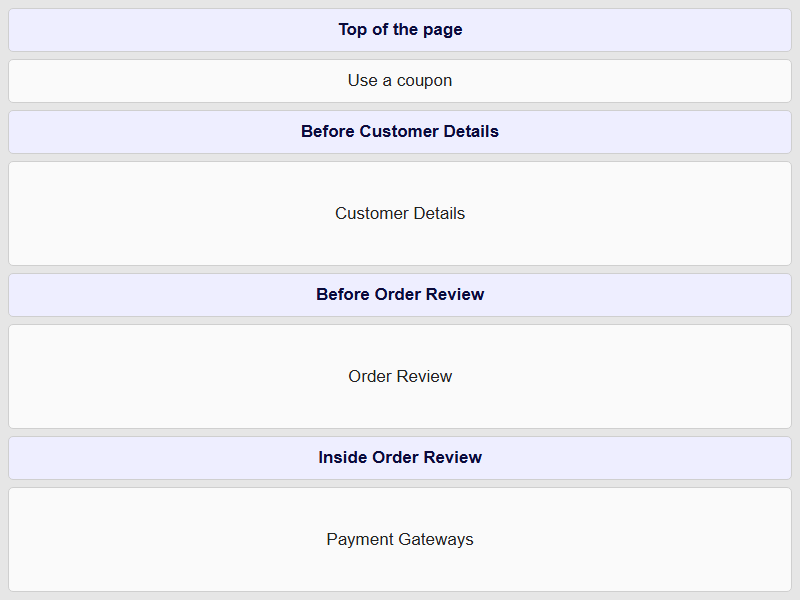
If your Cart or Checkout page is built with WooCommerce blocks, these text fields are disabled in the settings page. In that case, add the shortcodes below directly into the page.
For the Points on Cart tool in the blocks, read Points on Cart in the Cart and Checkout Blocks.
Shortcodes you should use
In each area, you can set the content you want. However, there are some shortcodes that you should definitely consider using in these pages :
Points on Cart
If you want your customers to spend their points for immediate discounts, you need to use this shortcode on the cart page.
[wr_points_on_cart]Available Rewards
With this shortcode, your customers can unlock their available rewards directly on the cart and apply them immediately
[wr_available_rewards applyreward="true" applyonly="true"]Available Coupons
If your customers have unlocked coupon rewards, you can list them and give the possibility to apply them on the cart
[wr_available_coupons buttons="true"]Order Points Preview
Thanks to this shortcode, you can show to your customers how many points they will earn when placing the current order
[wr_order_points_preview showdetail="true"]