
This article shows how to combine WooRewards and Virtual Wallet so that loyalty points turn into a currency of your own, here called Beans, that customers spend in a gift shop where prices are in Beans, not in money.
1. The scenario
You roast coffee. You want loyalty to feel like a club with its own money:
- Customers earn 1 point per dollar spent and 20 points for a product review.
- Every point turns into a Bean as soon as it is earned.
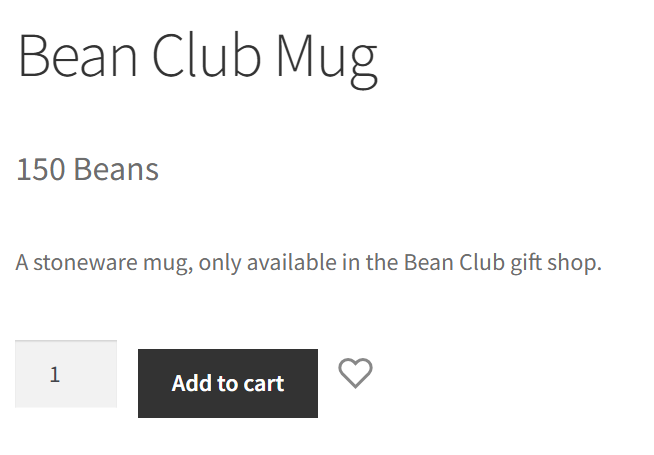
- A few products, a mug or a tote bag, are sold only for Beans: the Bean Club Mug costs 150 Beans.
WooRewards decides what earns points. Virtual Wallet holds the Beans, in its Gems wallet, and sells the products priced in Beans. The WooRewards reward Automatic conversion into Gems links the two.
2. What you need
- WooRewards Pro: the automatic redeem option used in step 4 is a Pro option.
- Virtual Wallet.
- Buying both gives you the Play Together discount.
3. Name your currency
- In Currency, set Currency to Bean and Currency (plural) to Beans. Leave them empty to keep the word Gems. See Gems Wallet Settings.
- At the top of the WooVirtualWallet pages, set Preferred Mode to the Gems wallet if Beans are the only wallet you use: the My e-wallet tab of My Account then shows the Beans balance.
4. Turn every point into Beans
- Click Add a Standard Points and Rewards System.
- Add the points actions: Spend money (Money spent 1, Earned points 1) and Product review (Earned points 20). Purchase Required is checked by default: the review earns points only on a product the customer bought, once the order is Completed.
- In Rewards, keep Rewards Type on Rewards and add the reward Automatic conversion into Gems, from the WooVirtualWallet category: set Gems per Point to 1. The points field becomes the minimum points needed for a conversion; 1 converts every point.
- Set Automatic Rewards Redeem to Unlock best reward only, so the conversion runs on its own each time points come in.
Keep this reward alone in its system: it converts all the customer’s points at once.
5. Sell products for Beans
- In Product data, choose Simple Gems Product (or Variable Gems Product).
- Set Regular amount (Beans) to 150. A sale amount works the same way.
- Publish.
6. What your customers see
The product page shows the price in Beans.
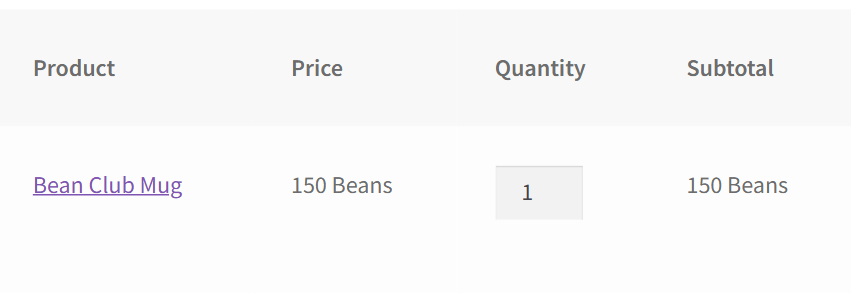
In the cart, the line is in Beans and the money total stays at zero for it.
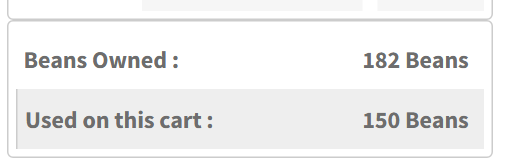
To show the balance beside the cart, go to WooVirtualWallet > Appearance > WooCommerce, group Beans Cart Total, and set Cart Display: the box shows what the customer owns and what this cart uses. See WooCommerce Display.
The Beans are taken from the customer’s balance when the order reaches Processing or Completed (Order statuses to use Gems in the Gems settings).
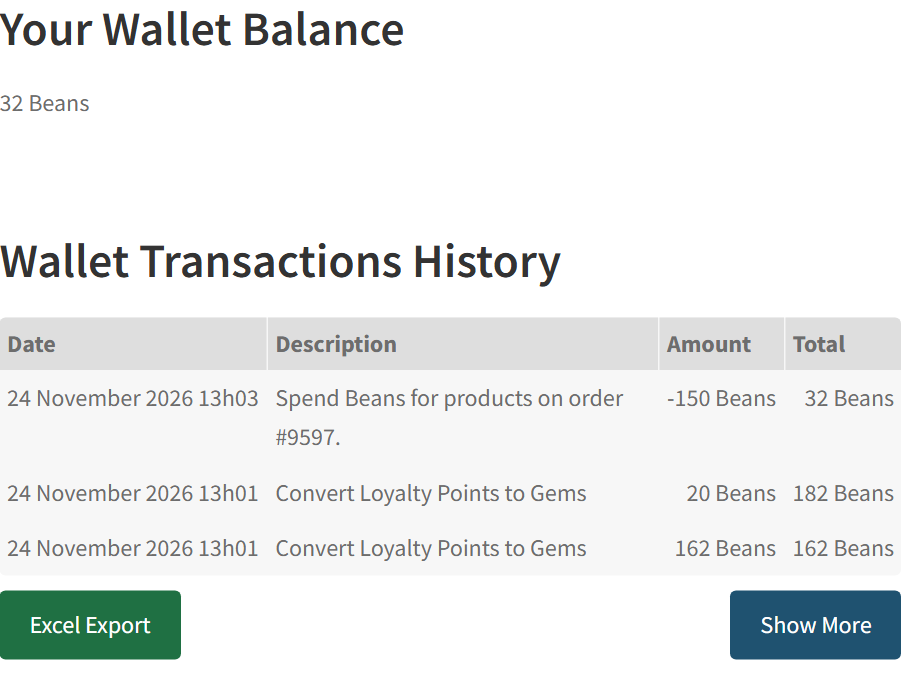
The My e-wallet tab of My Account shows the balance and every movement: points converted, Beans spent.
Only logged-in customers can buy a product priced in Beans; at checkout, an order that needs more Beans than the customer owns is refused.
7. Variants
- Beans at fixed thresholds instead of every point: use the reward Fixed amount of Gems (Gems count) with Automatic Rewards Redeem off, and let customers pick it in their rewards.
- Beans as a cart discount instead of products: turn on the Gems to Discount group of the Gems settings (titled with your currency name, Bean to Discount here).
- Money instead of Beans: the rewards Automatic Virtual Wallet Money and Fixed amount of Virtual Money credit the standard wallet. See Virtual Wallet.